Monday, 6 October 2014

विडियो संपादित करें VIDEO EDITING SOFTWARE ONLINE

विडियो देखते हुई उसके एक कोने में विडियो बनाने वाले का लोगो देखकर हमारे मन भी इच्छा जागृत होती है कि हम भी अपने बनाये विडियो में अपना लोगो लगायें,पर कैसे ?
तो आईये आज चर्चा करते है कि अपने विडियो में अपना लोगो कैसे लगाया जाय-

1-सबसे पहले आप यहाँ चटका लगाकर iWisoft Free Video Converter डाउनलोड कर अपने कंप्यूटर में संस्थापित करें|

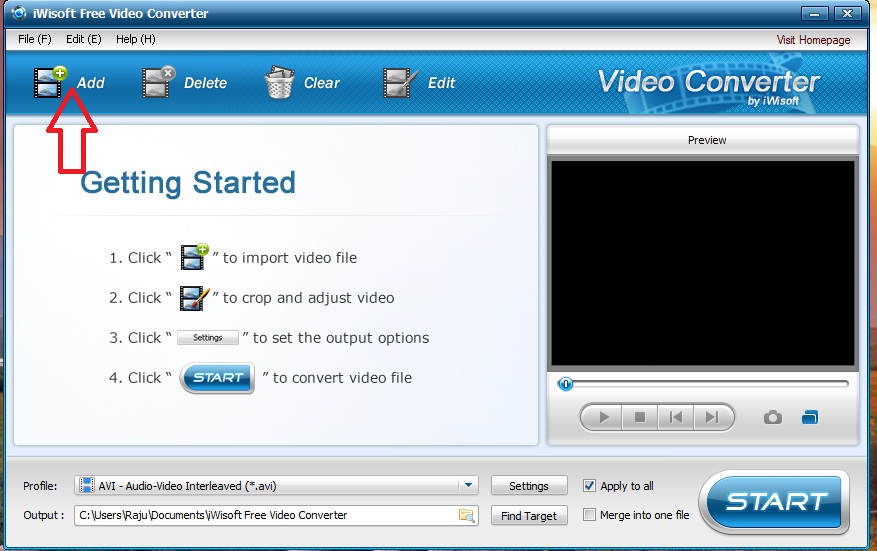
2-अब अपने डेस्कटॉप पर बने इसके आइकन पर क्लिक कर इसे खोले|और ADD पर क्लिक कर अपने कंप्यूटर में सहेजी कोई विडियो फाइल इसमें जोड़े|


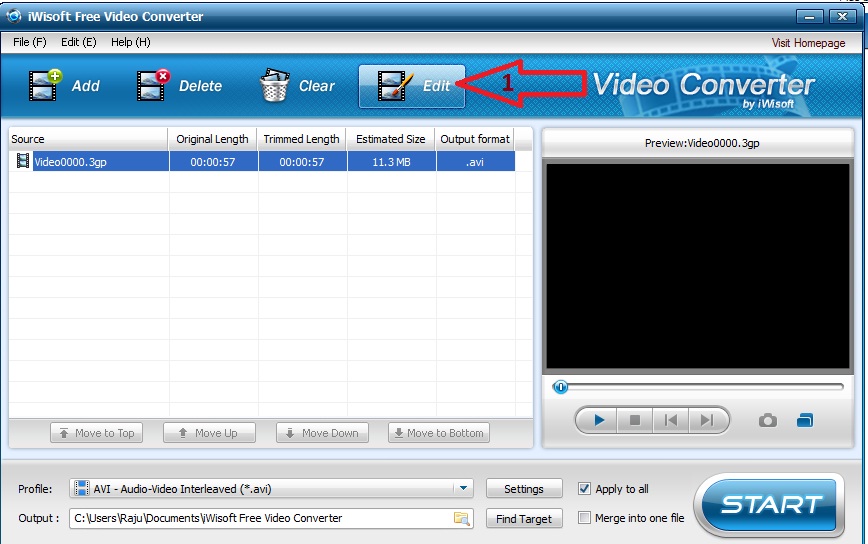
3-अब Edit पर क्लिक करें|


4- A.अब चित्र में दिखाए अनुसार Logo लोगो बटन पर क्लिक करे|

4- B.अपने कंप्यूटर में सहेजी विडियो फाइल चुने|

4- c.विडियो फाइल चुनते ही प्रीव्यू में आपको अपना लोगो दिखाई देगा जिसे आप माउस से पकड़ कर जहाँ रखना चाहते है वहां रख सकते है|


5-यदि आप अपने विडियो में कोई नाम लिखना चाहते है तो Text पर क्लिक करे और नीचे खुली जगह पर आप जो भी लिखना चाहते है लिखे, साथ ही प्रीव्यू विंडो में देखें आप अपने अक्षर जहाँ रखना चाहते है उन्हें माउस से उठाकर रख सकते है|


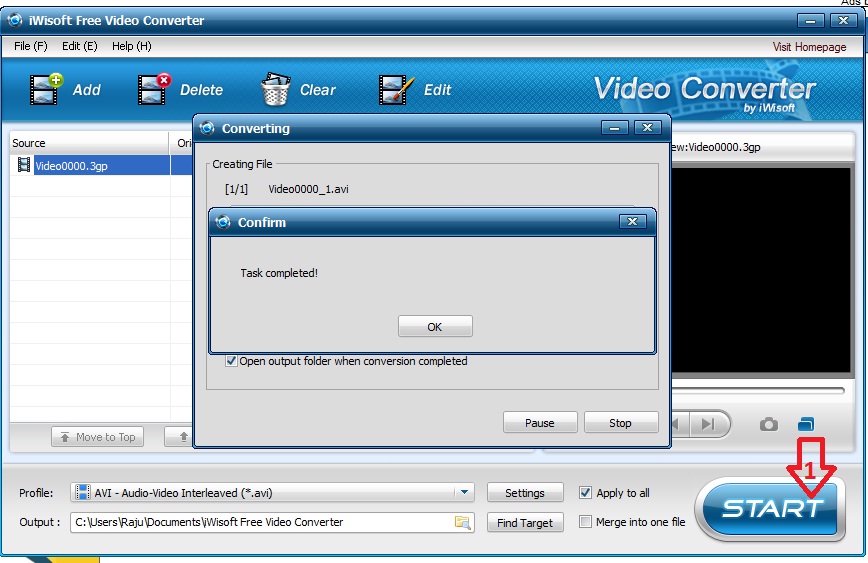
6-अब Start स्टार्ट बटन पर क्लिक कर दें, थोड़ी देर में का सन्देश दिखाई देगा जिस पर ओके बटन पर क्लिक कर दीजिये| अब दिखाई देने लगेगा आपका लोगो आपके विडियो पर|


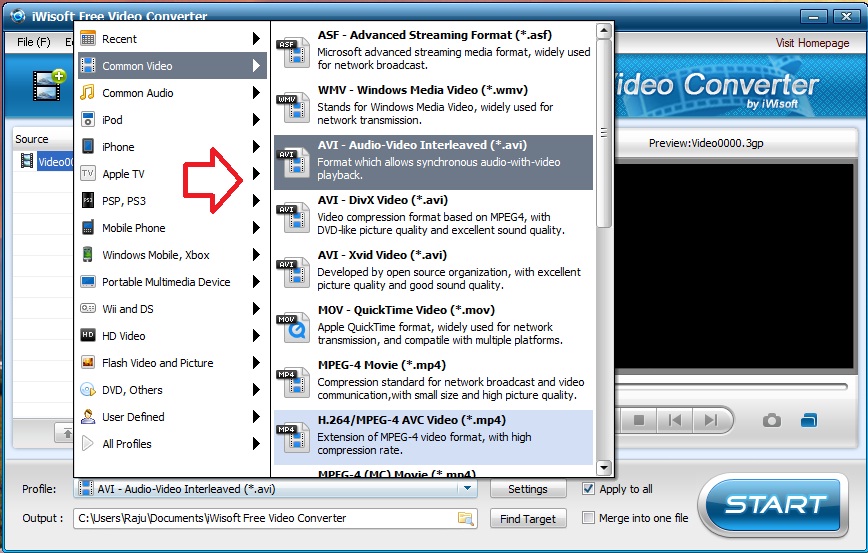
यदि आप अपने विडियो का फाइल फोर्मेट भी बदलना चाहते है तो कोई दिक्कत नहीं विडियो एडिट करते समय ही आप Setting पर क्लिक कीजिये एक पर्ची खुलेगी जिसमे आप अपनी पसंद का फाइल फोर्मेट चुन लें|


और ये देखिये अपने मोबाइल से बनाये इस विडियो में मेरा लगाया लोगो 


आप यहाँ जाकर भी इस सोफ्टवेयर को इस्तेमाल करने के बारे में जान सकते है|

Read more: http://www.gyandarpan.com/2011/07/how-add-logo-to-video.html#ixzz3FNCN9ldk

TRACE MOBILE LOCATION मोबाइल फोन की लोकेशन का पता लगाये

मोबाइल आज मानव जीवन का अभिन्न हिस्सा बन चुका है। इसके बिना सूनापन महसूस होता है और अगर ऐसे में आपका मोबाइल चोरी हो जाए तो आपके लिए यह असहनीय होगा। इसलिए इस सॉफ्टवेयर के जरिए आपके फोन की लोकेशन भी मिल सकेगी और जो हैंडसेट खोजने में आपकी साहयता भी करेगा। अपने हैंडसेट में एंटी थेफ्ट सॉफ्टवेयर इंस्टॉल कराएं। जिससे फोन चोरी होने के बाद आसानी से मिल जाए। कुछ मोबाइल कंपनियां अपने फोन मे प्री इंस्टॉल्ड एंटी थेफ्ट सॉफ्टवेयर दे रही है लेकिन अगर आपके फोन मे यह सुविधा नही है तो आप कोई अच्छा एंटी थेफ्ट सॉफ्टवेयर इंस्टॉल करवा सकते है।
यह भले ही आपके मोबाइल को सेंट परसेंट थेफ्ट प्रूफ न बनाती हो लेकिन इनके जरिए अपने फोन को एसएमएस से भी लॉक कर सकते है अपना डाटा रिकवर और डिलीट कर सकते है। सिम बदलने की स्थिति मे एंटी थेफ्ट एप्स एसएमएस के जरिए फोन नंबर और टॉवर लोकेशन आपके दूसरे फोन पर भेज देती है। जीपीएस के जरिए भी लोकेशन ट्रैक की जा सकती है। कुछ टॉप एंटी थेफ्ट सॉफ्टवेयर इस प्रकार है।


(periodic.phonelocator.mobi)फोनलोकेटर पीरियॉडिक एक फ्री सॉफ्टवेयर है जो नोकिया की सिबियन 60 सीरीज के अलावा सैमसंग और सोनी एरिक्सन को सपोर्ट करता है। इसी वेबसाइड पर ही लोकेशन ट्रेस की जा सकती है। साथ ही सिम बदलने की इनफारमेशन भी एसएमएस से दूसरे फोन पर मिलती रहती है।

(www.f-secure.com)
एंटी वायरस मार्केट मे एक सिक्योर भरोसेमंद नाम है। इसकी एंटी थेफ्ट एप्लीकेशन फ्री है। यह सिबियन,एंडयड और विंडोज ओएस को सपोर्ट करता है। चोरी होने पर फोन को रिमोटली लॉक करने के अलावा रिमोटली डाटा रिमूव और लोकेशन जानने के अलावा सिम ट्रैक कर सकते है इसका एंटी थेफ्ट प्रोटेक्शन फ्री हैलेकिन एफ सिक्योर मोबाइल सिक्योरिटी पेड सर्विस है इसका सब्सक्रिप्शन 2,499 से 3,999 मे उपलब्ध है।

(www.wavesecure.com)
बेवसिक्योर से आप फोन को रिमोटली लॉक कर सकते है। फोन बैकअप के अलावा लोकेशन सिम ट्रेकिंग ओर चोरी के बाद फोन से की गई कॉल नंबर्स भी एक्सेस कर सकते है। यह एंडसडसिबियन,ब्लैकबेरीविडोज और जावा एनेबल्ड हैंडसेट्‌स को सपोर्ट करता है।

(www.trackandprotect.com)
टै्‌क एंड प्रोटेक्ट फ्री और पेड वर्जन में उपलब्ध है। यह समय समय पर पासकोड चेकफोन स्टार्टअप पर पासकोडसिम चेंज करने पर ऑटो फोन लॉकगलत पासकोड पर स्क्रीन लोकफोन लोकेशन और सिम ट्रैक के अलावा तीन बार पासकोड खोलने की कोशिश पर चोर का फोटो आपके फोन पर भेज देगी।

(www.microlmts.net)
माइक्रो टैक्नोलॉजीज की एंटी थेफ्ट एप्लीकेशन काफी कारगर है। यह सिबियन ब्लैकबेरी और विंडोज ओएस को सपोर्ट करता है। यह एसएमएस के जरिए लोकेशन और सिम ट्रेकिंग करता ही है ऑपरेटर बेस्ड जीएसएम सेल टॉवर लोकेशन भी देता है। यह 99, 250 और 399 के सब्सक्रिप्शन ऑप्शन में उपलब्ध है।

(www.kaspersky.com)
केसपर्सकी के कंप्लीट मोबाइल प्रोटेक्शन पैकेज मे प्राइवेसी प्रोटेक्शन अनवान्टेड कॉल्स एसएमएस ब्लॉकपेरेंटल कंट्रोल  एंटी मालवेयर और एंटी वायरस प्रोटेक्शन के अलावा फायरवाल ऑप्शन भी है। एंटी थेफ्ट एप्स में सिम चेंज के अलावा रिमोटली फोन ब्लॉक और गूगल मैप पर जीपीएस फाइंड का ऑप्श्सन भी है। यह 680 मे उपलब्ध है।

Sunday, 5 October 2014

Tips Google+ Comments Box Fix in Blogger Dynamic Views

If you use Blogger Dynamic Views on your blog with Google+ Comments on it, you might notice your comment box appearing slightly off, like it's squashed towards the left of your blog. Some times it fixes itself while you navigate through the page, some times it doesn't. Here's a fix that you could use for now.


Go to Template Designer - Advanced - Add CSS - paste the following code - Press enter after the last character of the last line } - Apply to Blog. 
?
1
2
3
4
@media only screen {
.overview-inner .comments {
min-width: 750px;}
}

Scroll Text on your WEBSITE RUNING WORD TIPS CODE

How to make srolling text, now hare you find all of easy we provide and how to make it easier for those of you who like to create your own blog pages with little wear sroll text on website page also in web page runing word


1. Scroll Text one 
Your Text Here<marquee> Your Text Here </marquee>
2. Scroll Text two 
Your Text Here
<marquee direction=right> Your Text Here </marquee>

3.Scroll Text tre 
Your Text Here
<marquee behavior=alternate> Your Text Here </marquee> 
4. Scroll Text Link 
Description
<marquee> <a href="url_goes_here">Description</a> </marquee> 

5. Scroll Text image

<marquee> <img src="Your Link Picture here"> </marquee> 

6. Scroll Text Up loop

Your text here

<marquee direction=up loop=true height="100" >
Your text here </marquee>
 

7. Scroll Text Down loop

Your text here

<marquee direction=down loop=true height="20" >
Your text here </marquee> 

8. Sroll Text Left 
Welcome to my blog page , and thanks for comming

<marquee direction="left" onmouseover="this.stop()" width="100%" onmouseout="this.start()" scrollamount="3" height="20" align="left">Welcome to my blog page , and thanks for comming</marquee>


FREE CALLING TO INTERNET MOBILE PHONE WITHOUT NUMBER CODE

Yes! you make a call without showing hide your mobile sim no. by useing internet website, today we provide very useful information you

Ever got a call where caller ID read private number or Withheld and wondered how the caller did it? It's fairly easy to do, and there are steps you can take in the UK to keep your identity hidden whether you're calling from a land line or a mobile phone. Hiding your phone number can help you maintain your own privacy as well as prevent people from calling you back, and therefore can come in handy if you have to call someone, but don't want them to have your phone number.

Method 1 of 2: Calling from a Land Line

  1. Hide Your Phone Number (UK) Step 1 Version 2.jpg
    1
    To hide your phone number when making a call, enter the numbers 141before the phone number. Don't remove any of the digits of the number you're calling.
    • Entering 141 is not a permanent way to hide your number. You'll need to enter 141 each time you want to conceal your number.
    Ad
  2. Hide Your Phone Number (UK) Step 2 Version 2.jpg
    2
    Sign up for ex-directory. If you have phone service with BT, you can sign up for ex-directory. If you do so, your information will not be included in the phone book and will not be available via directory enquiries nor through online directory service.
  3. Hide Your Phone Number (UK) Step 3.jpg
    3
    Get a second number. You can use a service that "cloaks" your phone number by assigning you a second number that you can give to those you might like to receive a call from but don't know or trust well enough with your actual phone number. When they place a call to you, it will be diverted to your true phone number without them being aware of the transfer.

Method 2 of 2: Calling from a Mobile Phone

  1. Hide Your Phone Number (UK) Step 4.jpg
    1
    Change your phone's settings. Most mobile phones will allow you to keep your number hidden every time you make a call. The process is different for smart phones and non-smart phones and varies by model.
    • For most smart phones, click on "Menu" and then select "Settings"/"General Settings" or "Options." Look for a setting called "Show or Hide" or "Restrict My Identity" or something similar. Set the option to "Hide" or "Always" depending on what's appropriate and hit "Save."
    • For most non-smart phones, click "Menu" and then choose "Settings." Once inside, find and click "Send my caller id" and change the setting to "No." Save your change if necessary.
  2. Hide Your Phone Number (UK) Step 5.jpg
    2
    Use a code. Enter #31# before entering the phone number you wish to call. This is a one-time fix, so you'll need to enter #31# each time you want to hide your number.
    • Every carrier is different, so if #31# doesn't work, try one of the following number/symbol combinations before entering the number you're calling: *#30# / *#31# / *31#.
    • If your phone is already set to hide your number, entering a code before making your call could actually reverse the procedure and show your number. Be sure to check or change your phone's setting as detailed above.
  3. Hide Your Phone Number (UK) Step 6.jpg
    3
    Download an app. There are apps available for Android and iPhones that allow you to create "disposable" phone number, essentially turning your phone into a burner. The numbers mask your true phone number and do not allow calls to be traced back to your phone. You can get multiple phone numbers and discard them at any time.
    • This can be a great option for avoiding spam and maintaining privacy when you're job hunting or post your number on Craigslist, Twitter or a social media site.


calling without showing number how to call without showing number iphone how to call without number showing on bill how to call without number showing up

DELETE Permanently SEND MSG Chat history on whatsapp messages

  1. Direct off internet then uninstall whatsapp 
or >>
  1. Open WhatsApp and go to the chat window with the message you want to delete.
  2. Tap and hold on the message.
  3. Optionally, tap Select More from the right pane and tap on more messages to select multiple messages.
  4. Tap  Delete at the bottom of the right pane.

To delete an individual or group chat

  1. In the main chats screen, tap and hold on the chat you wish to delete.
  2. Optionally, tap Select More from the right pane and tap on more chat rows to select multiple chats.
  3. Tap  Delete at the bottom of the right pane.
  4. Confirm Delete chat or Delete and Exit Group by tapping Delete.

To delete or clear your entire chat history

  1. Go to WhatsApp >  Settings (Swipe down from the top of the screen to access the Settings) > Media Settings.
  2. Scroll to the bottom and tap Delete all conversations or Clear all conversations
    • Delete all conversations will delete all conversations and all messages inside of them. You will still be in your groups and they will be visible on your Chats list.
    • Clear all conversations will delete all messages but leave the conversations in the Chats list.
For more information about backing up chats read this article.
Learn how to delete messages or chats on: Android | iPhone | BlackBerry | Nokia S40 | Nokia S60 | Windows Phone.
Cheers, 

WhatsApp on PC laptop Easy Step

WhatsApp is one of the most popular cross-platform messaging app which allows you to send and receive SMS without any charges. Whatsapp has one of largest active user base of 300 million and around 20 million in alone India.WhatsApp can be used on any Smartphone Including Android, iOS, BlackBerry, Windows Phone and Asha platform, but what if you want to use it in PC? yes you can install Whatsapp on PC!

Install WhatsApp om PC or Laptop
How to use WhatsApp on PC? Installing WhatsApp on PC is very simple. Just follow below steps to download and Install WhatsApp on  PC or Laptop.
Requirement to use WhatsApp on  PC or Laptop:
  • A Laptop or PC with Windows OS
  • Working Internet Connection

How to Install WhatsApp on PC:

Below I have listed Two methods to Install Whatsapp on PC, follow the easiest one for you.
  • Download and Install WhatsApp on PC using BlueStacks.
  • Download and Install WhatsApp on PC using Wassapp. 

Method 1: To download and Install Whatsapp on PC using BlueStacks

Step 1: Download BlueStack (free Windows Application)
Step 2: After Finishing the Download Double Click on Downloaded File, Click ContinueClick Install.

Step 3: Now Download WhatsApp APK File

Step 4: After Finishing the Download Double Click on Downloaded WhatsApp APK file.


Step 5: Now whatsApp will install in your PC.


Step 6: Now Open BlueStacks (Click on BlueStacks icon in your Desktop)


Step 7: Now in BlueStacks >> Click on My Apps.


Step 8: Now you’ll see WhatsApp >> Click on it.


Step 9: Accept Terms and Condition 


Step 10: Type your Mobile Number in the Field
Note: First type your Country Code like 91 for India and then your Mobile Number
Step 11: Now WhatsApp will try to verify your number, but it will show fail message.
Step 12: Now click on Call Me >> You’ll receive a automatic call with a confirmation number, write down that number .
Step 13: Now type the received number in verification field and your done!
Enjoy WhatsApp on  PC!

How to Add Contacts to  WhatsApp ?

In Phone WhatsApp automatically checks for your contacts but in PC you have to add it manually. Follow below steps to add contacts in Whatssapp using Bluestecks.
Step 1: Open WhatsApp in Bluestack
Step 2: Click on Menu icon at the Bottom

Step 3: Now Click on Contacts Icon
Step 4: Again Click on Menu Icon
Step 5: Click on Add Contact
Step 6: Fill the given fields with Contact Number and Name
Step 7: Click on Done.
To add more contacts Follow same steps.
Update: Seems like the second method is not working anymore. Alternatively you can use Youwave to Install Whastapp on PC. Here is how to do it >> Install Whatsapp on PC using Youwave

Method 2: To download Whatsapp on PC using Wassapp Follow below steps

Wassapp is a unofficial Whatsapp client and It works for like the Android Emulator on Windows OS running PC. In the second method, we will be using Wassapp to install Whatsapp on PC.

Follow below steps to Download and Install Whatsapp on PC using Wassapp

Step 1: Download and Install Wassapp
Download Wassapp  (The link has been removed).
Step 2: After installing, open Wassapp and login using your Whatsapp username and Password. If you don’t have already created account then register.
Step 3:  Click on register button
Step 4: Now provide your Phone number and Password
Note: For an Android phone, the password will be same as its IMEI number. You can find the IMEI Number at the back of Your Android device under battery or by typing this code : *#06#
Step 5:  Now choose the mode of verification either by SMS or Phone call and press Request Code.
Step 6: Now if you have selected SMS then you will get a SMS from Wassapp with a code and if you have selected phone call then you will receive a computerized call with unique code, Note it down.
Step 7: Put the code you received by SMS or Phone call in Wassapp client and now you will get a computer-generated password and  you can use that password for login.
That’s it! Now you can use Whatsapp on PC and can send and receive SMS and messages for the added contacts. If you face any problem then let us know in the comments and don’t forget to share this with your friends!